Before you start studying first watch this Video to the end
https://youtu.be/y2kg3MOk1sY
Computer & Technology Basics Course for Absolute Beginners – freeCodeCamp.org
Lesson 1:
What is Information Technology ,Information Systems and Computer Science
Information Technology
Refers to everything that involves Computers – As a specific discipline, that is dedicated to meeting the computer needs of businesses, schools, governments, and other organizations.
Information Systems
A disciple that involves collecting and utilizing data.To help organizations know what they need, to generate it , and how to turn it into a meaningful decision.
Computer Science
The study of computers and computing concepts.In practice, computer science deals with creating software.and using computers to solve problems.
What is Computer
At their most basic level, computers are systems that take input from a user, process it, then display the results of the computation or store the results to be used later. As a PC technician, it’s very important that you understand the basic components that make up a computer. Computers are made up of constituent parts that work together to create a functional computer.These parts can be divided into two main categories, hardware and software.
Hardware refers to the physical components that are installed inside or connected to a computer system. By itself hardware can’t do much. It needs instructions to tell it what to do. These instructions come from the software. Software refers to instructions, or data, that are stored electronically either on a hard drive or on a special chip.
Hardware without software is like a car without a driver. A car has the potential to drive but it needs a driver in order to see the potential. Without a driver the car can’t do anything. The same is true with hardware. Hardware has a lot of potential but it needs software to instruct it to use that potential. The main thing to remember is that hardware is the potential and software is the instructions.
In this lesson, we’re going to take a look at the different types of hardware devices that compose a computer system. The first type of hardware we’ll look at is input devices.
Let’s look at each step of this process.
SUB: Lesson 1(a)
HARDWARE
Input Devices
Before a computer can work, somebody needs to physically put information into it. In computer terms, this is called input. The most common input device is a keyboard. A keyboard takes user inputs and sends them as electrical signals to the internal computer hardware where they are processed
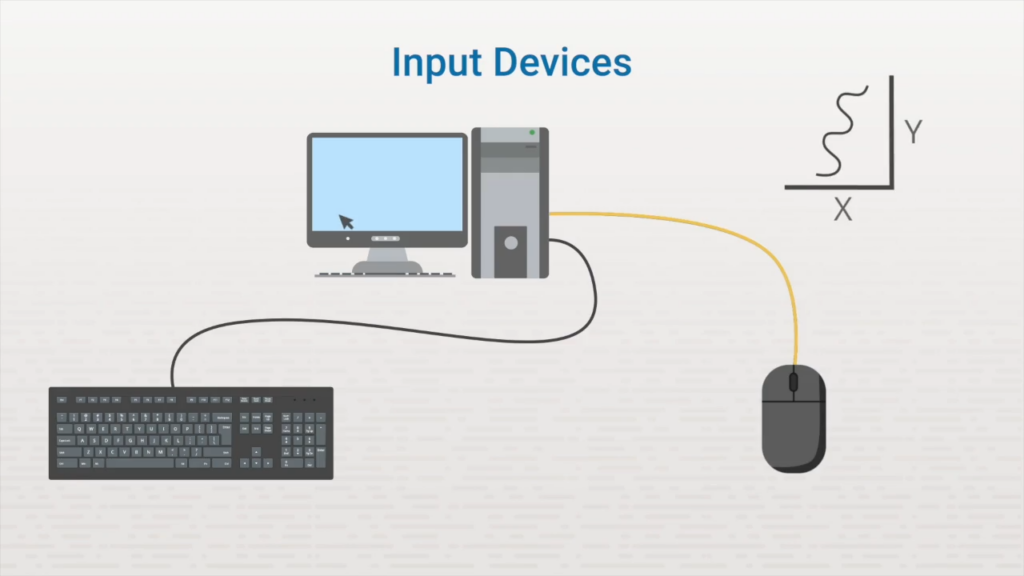
Each of these input devices sends electrical signals into the computer this is called Processing
processing Devices
However, the computer quickly performs calculations on the input, converting the raw electrical signals into data. This is called processing
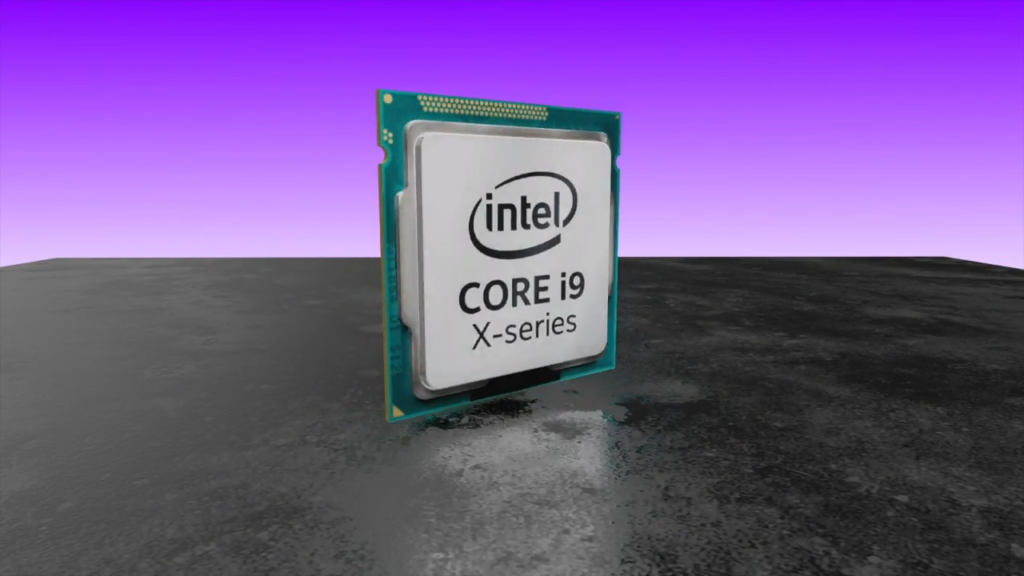
Signals generated by input devices need to be analyzed. This is done using a processing device. A processing device is any hardware component that can analyze and interpret input. The most common processing device is the central processing unit (CPU). The CPU is like the brains of the computer. It processes data according to a set of instructions or software.
.
Output Devces
Once processing is done, there are two things the computer can do with the data.
The first is to return information to the user, which is called output. Images on a screen, sounds from speakers, and printed pages are all output.
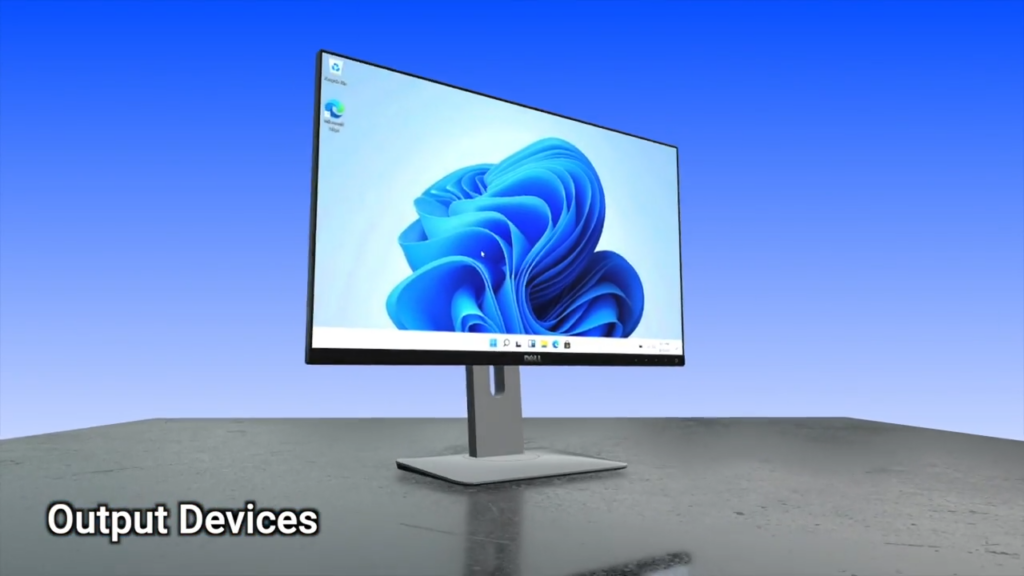
All the information that is being input, processed, and stored on a computer is useless unless there is a way to access and view it. This is done by using an output device. An output device is any device that receives data from a computer and outputs it in a physical medium.
The most common output device is a monitor. Monitors visually depict the data that is processed by the CPU, whether it’s numbers being calculated in a spreadsheet or aliens running around in a video game. A monitor displays a visual representation of the information being processed.
Another very common output device is a printer. Printers take information that is processed by the CPU and prints it on a piece of paper. Both monitors and printers output visual information.
There are more than just visual output devices. Another output device is a sound card. Sound cards take digital information and output it as audible signals. Almost all computers have some sort of audio output device.
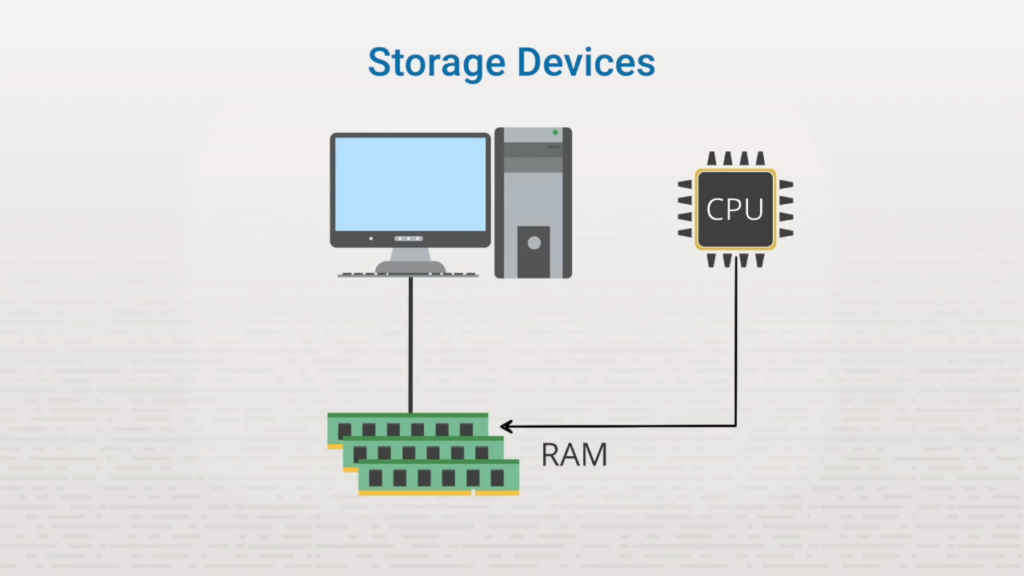
Storage Devices
The other option for processed data is to be remembered for later use. This is called storage. When the player saves her game, the computer records information about the game into its long-term storage. This lets the player turn her game off, then pick up where she left off when she comes back.
RAM can also be considered a hardware component called a storage device. A storage device is any hardware component that stores data, either temporarily or permanently. When data is stored temporarily, short-term storage such as RAM is used. It’s important to know that RAM is considered volatile memory, that means it’s not persistent. For example, if the computer is turned off or loses power, all the data that was stored in RAM is lost. It’s gone forever.
Networking Devices:
All the devices talked about so far communicate information within a single computer. However there are other hardware components that allow information to be communicated between multiple computers. These are known as networking devices. Networking devices are used to create networks.
A network is a group of two or more computers that are connected together. To create a network, a special interface is installed in a computer. A connecting medium is used to connect the computers together. This connecting medium can be a physical wire or even radio signals.
With this connection established, two or more computers can take information being processed by the CPU and send it to each other. This makes networking hardware both input and output devices. When one computer is outputting information, the other is inputting information and vice versa.
This Video Explain all you have to know about Computing Basics
SUB: Lesson 1(b)
Software:
In computing software is the intangible collection of data, programs, and instructions. What does this software do? It tells a computer’s physical hardware what to do and how to do it.
- Software is the non-physical set of instructions and data that directs the hardware’s, You can’t touch software;
- It provides the instructions and data for the hardware to execute a task.
- It relies on hardware to run,
- software exists as code allowing computers to perform specific tasks as running an Operating system, word processors, or web browsers
- Instructions or data that are stored electronically, either on a hard drive or a special chip. Software components include:
- Operating systems.
- Program applications.
- Hardware drivers (special programs that tell the operating system how to use the hardware).
Software is generally divided into two main categories:
System Software:
Manages the computer’s hardware and provides a platform for other software to run, such as operating systems (e.g., Windows).
Application Software:
Programs designed to perform specific tasks for the user like web browsers, word processors, or video games. Unlike application software, which is designed for the end user, system software controls computer hardware and coordinates the interaction between hardware and application software.
Introduction to Operation System
Learn how Computers manage Hardware, Software, and users
“Learning Objectives”
• Identify key functions of an OS
• Understand what an operating system does
• Recognize different types of operating systems
• Learn how OS interacts with hardware and software
What Is an Operating System?
• An operating system (OS) is software that manages computer
hardware, software, and user interactions. It acts as a bridge
between the user and the computer’s hardware.
• As a program: that manages a computer’s resources, especially the
allocation of those resources among other programs.
• Manages memory and processes
• Controls hardware and devices
• Provides user interface and file management
Core Functions of an Operating System
Process Management – Handles running programs and multitasking
• Memory Management – Allocates and tracks RAM usage
• Device Management – Controls input/output devices like keyboard,mouse, and printer
• File System Management – Organizes, stores, and retrieves files
• User Interface & Security – Provides interaction tools and protectssystem access
Types of Operating Systems
Batch Operating System – Processes jobs in groups without user Iinteraction
• Time-Sharing Operating System – Allows multiple users to share systemresources simultaneously
• Distributed Operating System – Coordinates multiple computers to work asone system
• Network Operating System – Manages resources across connectedcomputers
• Real-Time Operating System – Responds instantly to input, used in
critical systems like medical devices or robotic
Examples of Popular Operating Systems
OS Name Platform
Windows Desktop/Laptop
macOS Desktop/Laptop
Linux Servers/PCs
Android Mobile
iOS Mobile
How Operating Systems Work in Real Life
Booting up your PC – The OS loads and prepares the system for
use
• Opening apps on your phone – Android or iOS manages memory
and multitasking
• Saving a file – The OS handles file system access and storage
• Printing a document – The OS communicates with the printer
driver
• Connecting to Wi-Fi – The OS manages network hardware and
settings.
Let’s Recap
An Operating System (OS) is software that manages hardware, software, and
user interactions
• It acts as a bridge between the user and the computer’s hardware
• Core functions include process, memory, device, and file management
• There are different types of OS: Batch, Time-Sharing, Distributed, Network,
Real-Time
• Popular examples include Windows, macOS, Linux, Android, and iOS
Lesson 2 Types of Computer Systems
Beginner Course Module)
This is the natural next step after “Introduction to Computer Interfaces.”
It teaches students the actual devices behind the interfaces.
Below is a full, ready‑to‑use lesson outline you can paste into your website or turn into slides.
By the end of this lesson, you will understand:
• The major types of computer systems
• The difference between desktop, laptop, tablet, and mobile devices
• What servers are and why they are important
• Which type of system is best for different tasks
🧩 Main Content (Beginner‑Friendly)
🖥️ 1. Desktop Computers
• Large, powerful, not portable
• Used in offices, schools, and homes
• Best for heavy tasks (editing, gaming, programming)
💻 2. Laptop Computers
• Portable and battery‑powered
• Used by students, workers, and travelers
• Good balance of power and mobility
📱 3. Mobile Devices (Smartphones)
• Small, highly portable
• Used for communication, apps, browsing
• Most common device worldwide
📟 4. Tablets
• Touchscreen devices
• Bigger than phones, smaller than laptops
• Used for reading, drawing, presentations
🖧 5. Servers
• Powerful computers that store and manage data
• Used by companies, websites, and networks
• Not for personal use — they support many users at once
🟨 Summary Table
| System Type | Portability | Power Level | Best For |
|---|---|---|---|
| Desktop | Low | High | Offices, gaming, editing |
| Laptop | Medium | Medium‑High | Students, workers |
| Tablet | High | Medium | Reading, drawing, browsing |
| Mobile Phone | Very High | Medium | Communication, apps |
| Server | None | Very High | Websites, networks, companies |
🎯 Knowledge Check
1. Which device is the most portable?
A. Desktop
B. Laptop
C. Mobile phone
D. Server
2. Which device is used to host websites?
A. Tablet
B. Server
C. Laptop
D. Mobile phone
3. Which device is best for heavy tasks like video editing?
A. Desktop
B. Tablet
C. Mobile phone
D. Smartwatch
📝 Practice Task
List three computer systems you use at home, school, or work and describe what you use each one for.
🎤 Outro
“In the next lesson, we’ll explore the internal components of a computer and how they work together. Continue your Beginner Course to build a strong foundation in IT.”
🛡️ Lesson 3: Introduction to Cybersecurity (Beginner Courses)
⭐ Lesson Description
This lesson introduces the basics of cybersecurity, why it matters, common threats, and simple ways to stay safe online.
🎯 What Students Will Learn
☁️ Lesson 4: Introduction to Cloud Computing (Beginner Courses)
What cybersecurity means
• Why cybersecurity is important
• Types of cyber threats
• How cyber attacks work
• How to detect and prevent attacks
⭐ Lesson Description
This lesson introduces cloud computing, how it works, and why modern businesses and individuals rely on it.
🎯 What Students Will Learn
• What cloud computing means
• Types of cloud services
• Types of cloud deployment
• Benefits of cloud computing
• Real‑life examples
🧩 Main Content
☁️ 1. What Is Cloud Computing?
Cloud computing is the delivery of computing services (storage, servers, software) over the internet instead of using local computers.
🧰 2. Types of Cloud Services (IaaS, PaaS, SaaS)
• IaaS – Infrastructure as a Service (servers, storage)
• PaaS – Platform as a Service (developer tools)
• SaaS – Software as a Service (apps like Gmail, Zoom)
🏗️ 3. Cloud Deployment Models
• Public Cloud – shared (AWS, Azure, Google Cloud)
• Private Cloud – dedicated to one organization
• Hybrid Cloud – mix of public + private
⭐ 4. Benefits of Cloud Computing
• Cost‑effective
• Scalable
• Accessible anywhere
• Secure
• Automatic updates
📱 5. Real‑Life Examples
Google Drive
• iCloud
• Netflix
• Microsoft 365
• Amazon Web Services
📊 Summary Table (Cloud Computing)
| Concept | Meaning | Example |
|---|---|---|
| IaaS | Infrastructure as a Service (virtual servers, storage, networking) | AWS EC2, Azure Virtual Machines |
| PaaS | Platform as a Service (tools for developers to build apps) | Google App Engine, Azure App Service |
| SaaS | Software as a Service (applications delivered over the internet) | Gmail, Zoom, Microsoft 365 |
| Public Cloud | Cloud services shared by many users over the internet | Amazon Web Services, Microsoft Azure |
| Private Cloud | Cloud environment dedicated to one organization | Company’s internal data center cloud |
| Hybrid Cloud | Combination of public and private cloud working together | Company using both AWS and its own data center |
📝 Knowledge Check
1. What is cloud computing?
2. What does SaaS mean?
3. Name one benefit of cloud computing.
🎤 Outro
“Cloud computing powers the modern world. In the next lesson, we’ll explore computer hardware components and how they work together.”
🧩 Main Content
🔐 1. What Is Cybersecurity?
Cybersecurity is the practice of protecting computers, networks, and data from unauthorized access, attacks, or damage.
🧨 2. Why Cybersecurity Is Important
.Protects personal information
• Prevents financial loss
• Secures business operations
• Protects national security
🦠 3. Common Cyber Threats
• Malware (viruses, worms, trojans)
• Phishing (fake emails/messages)
• Ransomware (data locked for money)
• DDoS attacks (overloading a system)
• Insider threats (employees misusing access)
⚙️ 4. How Cyber Attacks Work
• Trick users into clicking
• Exploit weak passwords
• Infect devices through downloads
• Attack networks with traffic
• Steal data silently
🛡️ 5. How to Detect and Prevent Attacks
• Use strong passwords
• Enable two‑factor authentication
• Avoid suspicious links
• Keep software updated
• Use antivirus and firewalls
📊 Summary Table (Cybersecurity)
| Threat Type | Meaning | Example | Prevention |
|---|---|---|---|
| Malware | Harmful software designed to damage or steal data | Virus, Trojan, Worm | Antivirus, updates, safe downloads |
| Phishing | Fake messages used to trick users into giving information | “Your bank account is locked” email | Avoid unknown links, verify sender |
| Ransomware | Locks your files and demands payment | Encrypted files with ransom note | Backups, security patches |
| DDoS Attack | Overloads a system with traffic to make it crash | Website becomes unavailable | Firewalls, traffic filtering |
| Insider Threat | Internal user misusing access | Employee stealing data | Access control, monitoring |
📝 Knowledge Check
1. What is cybersecurity?
2. Name two common cyber threats.
3. How can you protect yourself online?
🎤 Outro
“Cybersecurity protects everything we do online. In the next lesson, we’ll explore Cloud Computing and how modern systems store and process data.”